Learn how to navigate the engagement analytics in your GenLearn analytics dashboard
Learner Activity Trends
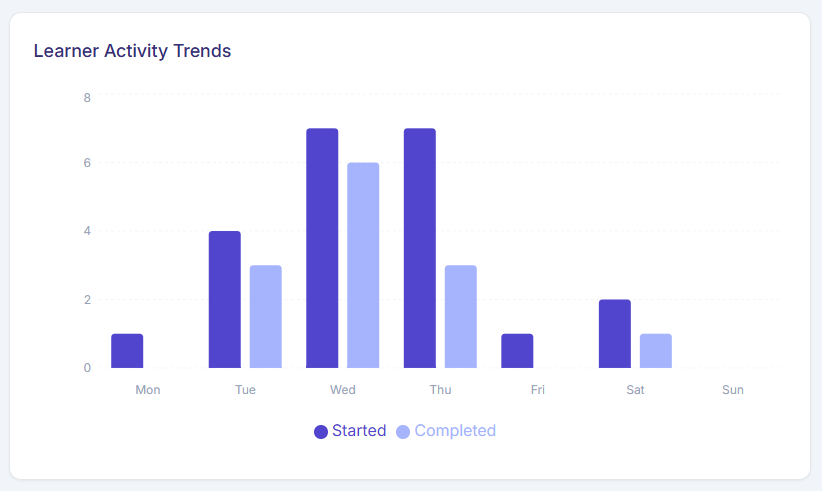
Numbers and days
- The numbers displayed on the left hand side of the column table is the number of learners specific to the date range selected
- The days displayed at the bottom of the column table are the days of the week. This is based on a 1 month date range or less
- If you have selected a range over a period of months, the bottom will display month names instead
Started and Completed
- The conversations started column is highlighted in dark purple. This shows you an overview of how many learners have started a conversation in the date range selected
- The conversations completed column is highlighted light purple. This shows you an overview of how many learners have started and completed a conversation in the date range selected.
By hovering over each column, the number of started and completed conversations are also shown.
Average Completion rate
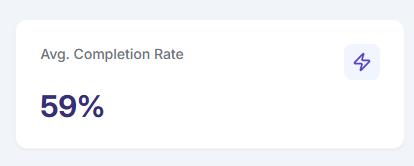
The percentage rate changes depending on the date range entered and the conversations that have been completed, this part is automatically calculated.
Downloading a CSV file
Once you have entered the specific date range for the information you are trying to collect you have the option to download the data.
By selecting:
This will allow you to download and save/print the information currently displayed from the analytics dashboard.
Custom Range
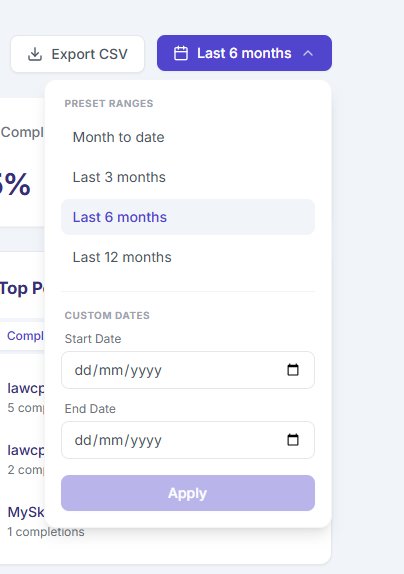
To customise the date range select the purple button at the top right corner:
The text will change depending on what time period is currently set. If you are unable to find this in your dashboard, look for the calendar icon.
There are different preset ranges that you can easily select or you can specify your custom date range you are trying to view.
- Month to date - This shows you data for the past month up to today's date
- Last 3,6 or 12 months will show you these date ranges
For these two options above there is no need to select apply. Once you select the preset date range, this displays the data straight away
- Custom dates - Enter your specific date that include a start and end date, you will need to select "Apply" for the data to be displayed with your specific date range entered.
Top performing Conversations
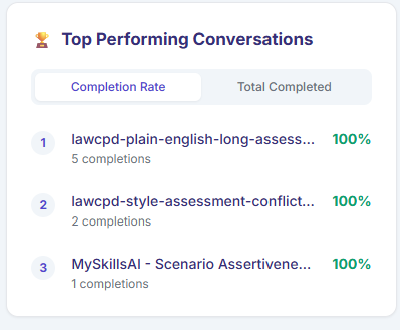
Completion rate
- Select "Completion Rate" and this will display the top 3 conversations with the highest completion rate
- The top title/heading: This is the name of the conversation
- "5 Completions" this shows how many learners have completed this conversation
- the green percentage shows the percentage rate of learners who have completed this conversation and the overall percentage
Total Completed
- Select "Total completed" and this will display the top 3 conversations with the highest amount of learners completing this conversation overall
- The top title/heading: This is the name of the conversation
- "48 Completions" this shows how many learners have completed this conversation
- the green percentage shows the percentage rate
Was this article helpful?
That’s Great!
Thank you for your feedback
Sorry! We couldn't be helpful
Thank you for your feedback
Feedback sent
We appreciate your effort and will try to fix the article