The analytics dashboard is a central location for providing you with real information around the engagement levels of your learners with each conversation you have created.
Accessing your Analytics Dashboard
- Log into your GenLearn Account
- At the top heading, select Analytics
Understanding the Dashboard
Engagement Analytics
This section of the analytics dashboard gives you an overview of how your conversations are performing.
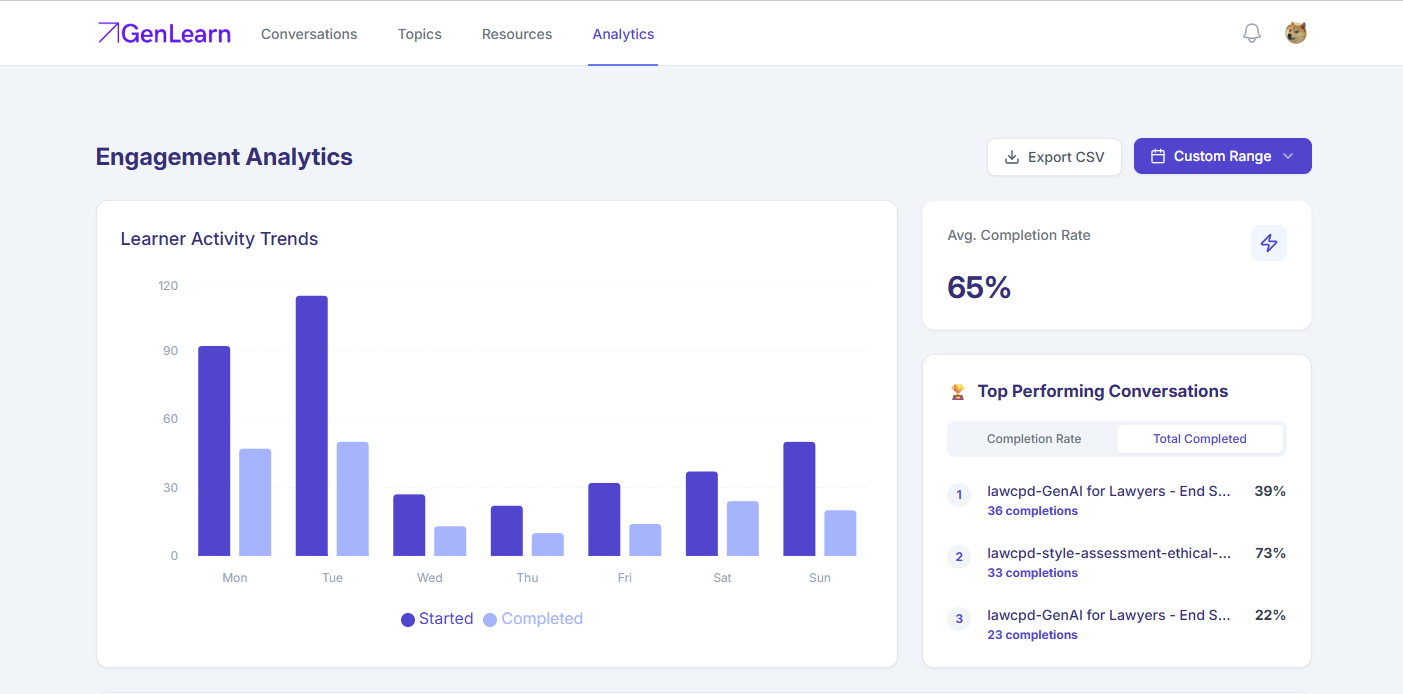
Learner activity Trends
- This shows you engagement by day of the week and how many learners have started and completed conversations. This helps to identify usage patterns/treads. Learn more
Average Completion Rate
- This provides an average completion rate percentage over the time range selected. Learn more
Export CSV
- By selecting export CSV you are able to download a spreadsheet of the data displayed. Learn more
Custom Range
- This option allows you to customise the date range for your analytics. You can choose preset periods of 1 month to date, 3, 6, or 12 months, or select a custom date range to fit your specific reporting needs. Learn more
Top performing conversations
- Completion rate: This feature provides you with the top 3 conversations with a high completion rate.
- Total completed: This shows you how many learners completed each of those conversations during the custom period you specified. Learn more
Conversation Performance
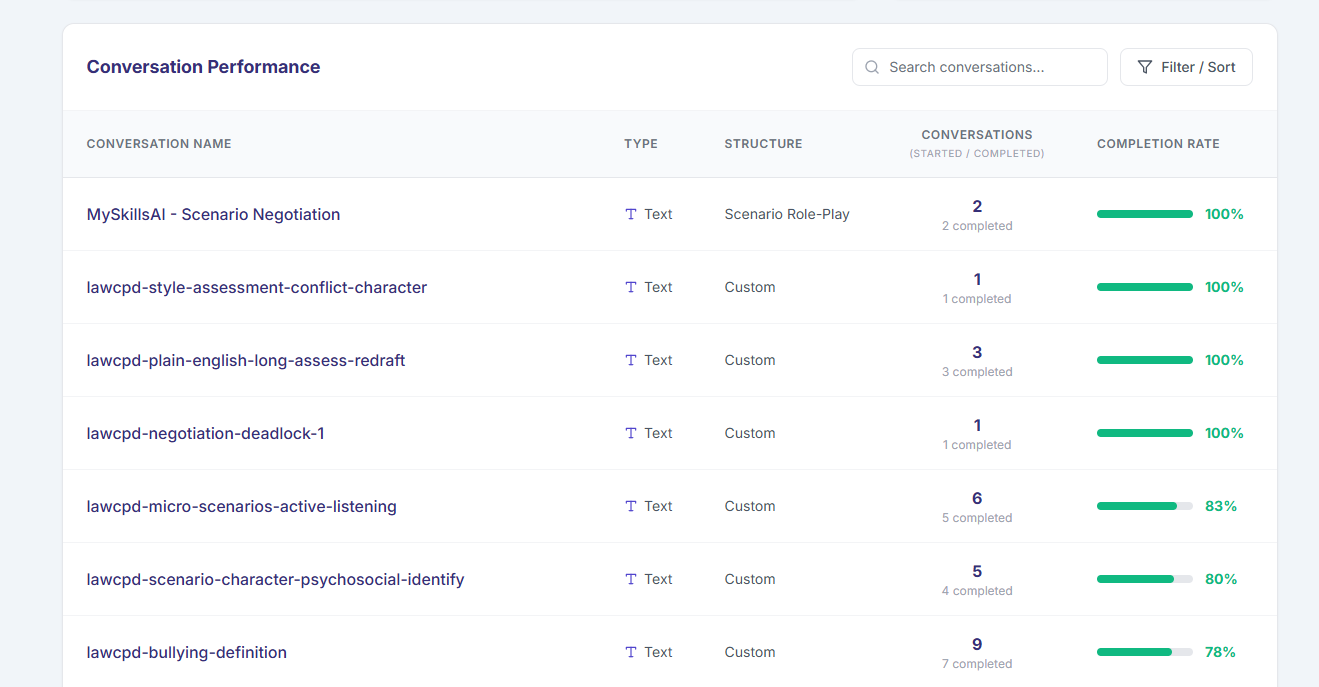
This section of the analytics dashboard provides more detailed data for individual conversations, helping you understand how each one is performing and how learners are interacting with them.
Search conversations
- If you are looking for a specific conversation, you can enter the name in this field and it will bring up the related conversation. Learn more
Filter/Sort
- This feature allows you to filter the conversation based on the below options:
- Filter by type: filter by voice, text or both conversations.
- Sort by: Completion rate or number completed
Conversation name
- Name of the conversation created
Type
- Whether the conversation is a Voice or Text conversation
- Conversation(started/completed)
- This shows the number of times the specific conversation has been started(top) or completed(bottom) i.e 2 completed
Completion rate
- This gives you an overall percentage of how many learners have completed the conversation and not just started it.
Was this article helpful?
That’s Great!
Thank you for your feedback
Sorry! We couldn't be helpful
Thank you for your feedback
Feedback sent
We appreciate your effort and will try to fix the article