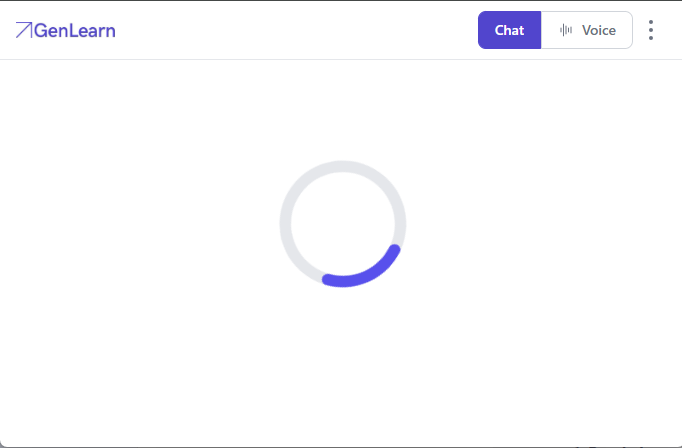
If while interacting with the AI tutor you can just see a “loading” icon like the one below, the first thing to check is whether your microphone is working.
Select your browser/device below to see which steps to follow:
- Check Microphone is Working in Chrome
- Check Microphone is Working on Firefox
- Check Microphone is Working on iPhone
Check Microphone is Working in Chrome
Enable using pop up
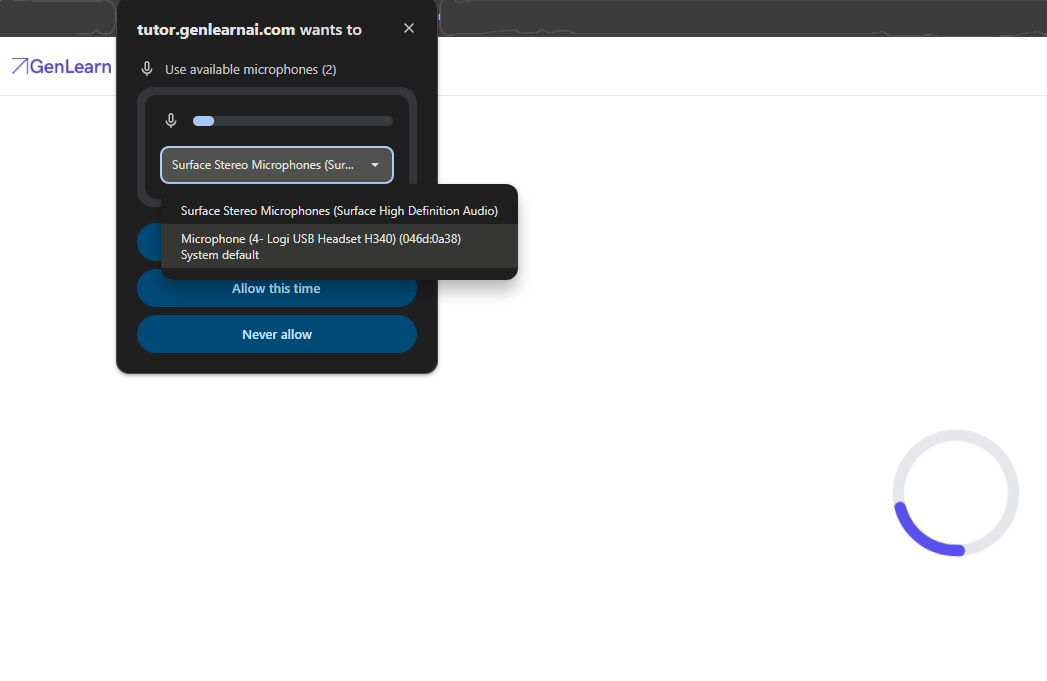
- If you are using Google Chrome, usually a pop up like the one below will appear as the Voice AI tutor is loading.
- When you see this, click on the dropdown to connect to the correct microphone then select “Allow while visiting this site”
Enable without pop up
If you don’t see the pop up, or if you accidentally dismiss it before allowing microphone access, you can still enable your microphone in your Chrome settings.
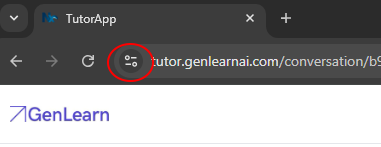
- Click on the icon (circled below) next to the URL
- In the menu that opens, select “Site settings"
- This will open your permissions for the Voice AI tutor
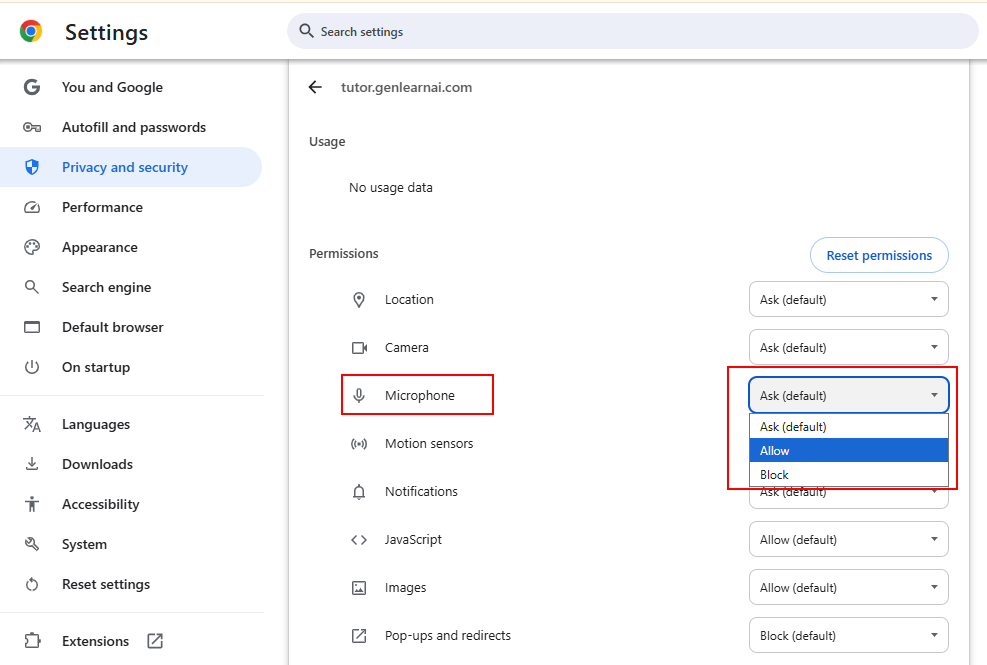
4. Next to "Microphone" click the dropdown arrow and select "Allow".
5. Return to the browser tab where you have the Voice AI tutor open, then select “Reload” to apply the new settings.
6. Select “Allow while visiting the site” when the pop up appears.
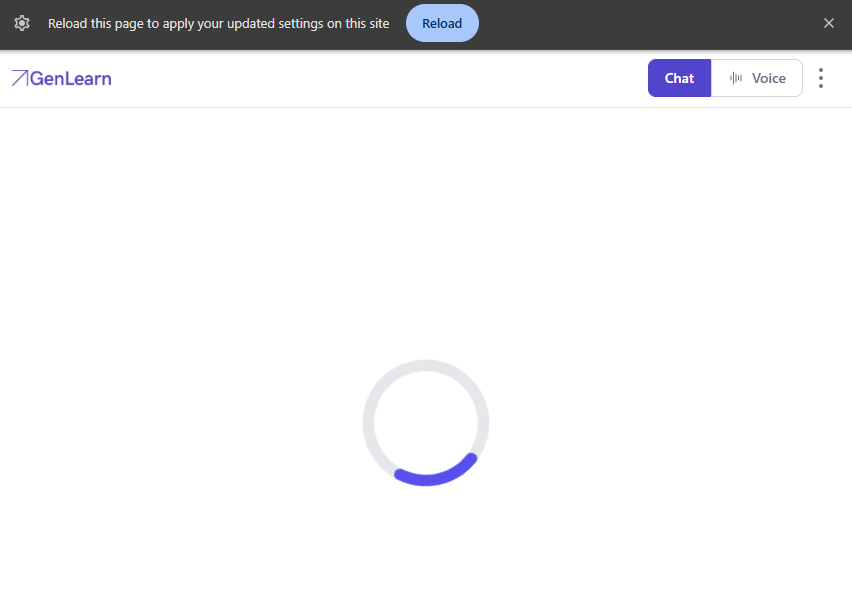
7. The Voice AI tutor will then start speaking once your microphone is enabled.
The other way to enable the microphone in your Chrome settings is to:
- Select the three dots in the top right corner just under the “X” in the browser
- Select “Settings” in the menu that appears
- Select “Privacy and security” in the left menu
- Select “Site settings”
- Select “Microphone”
- Select the arrow next to the site “https://tutor.genlearnai.com”
- Select the drop down arrow next to "Microphone" and select “Allow”
- Return to the browser tab where you have the Voice AI tutor open, then select “Reload” to apply the new settings.
- Select “Allow while visiting the site” when the pop up appears.
Check Microphone is Working on Firefox
Enable using pop up
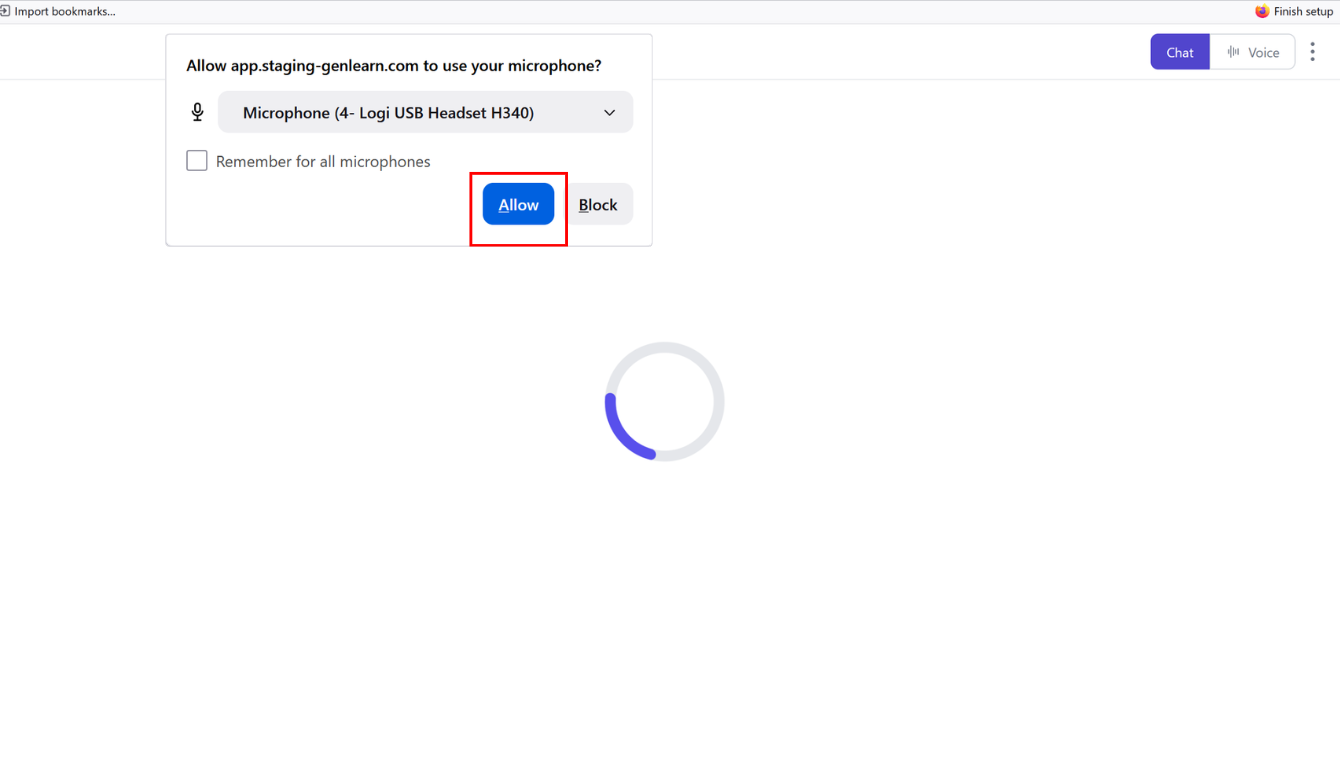
- When using Firefox, usually a pop up like the one below will appear as the Voice AI tutor is loading.
- When you see this, tick 'Remember for all microphones, and press 'Allow'.
Enable without pop up
If you don’t see the pop up, or if you accidentally dismiss it before allowing microphone access, you can still enable your microphone in your firefox settings.
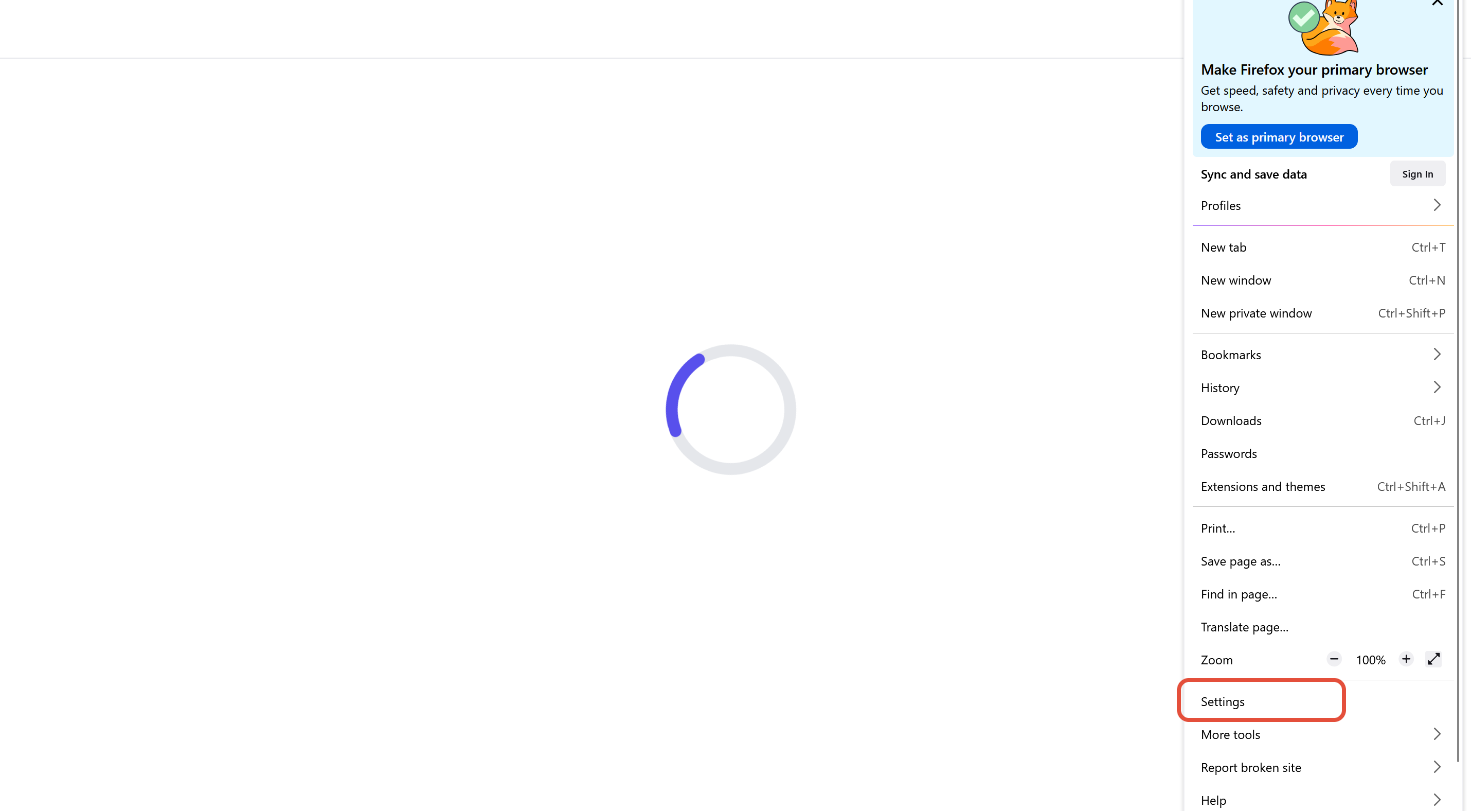
- Click on the 3 lines in the top right corner to open your side bar
- In the menu that opens, select 'Settings'
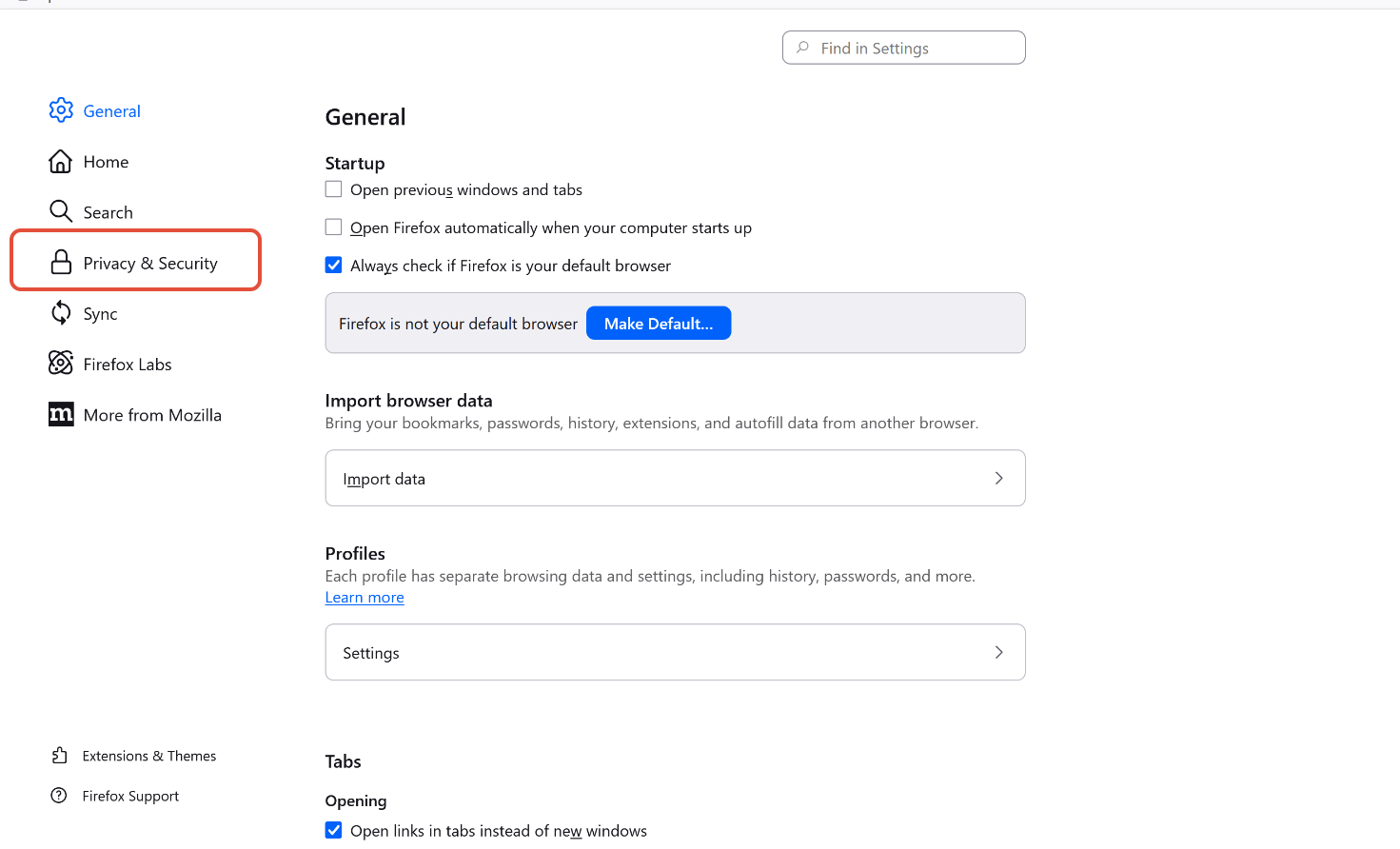
3. Click on 'Privacy & Security' in the left hand menu
4. Scroll down to 'Permissions' and select 'microphone'
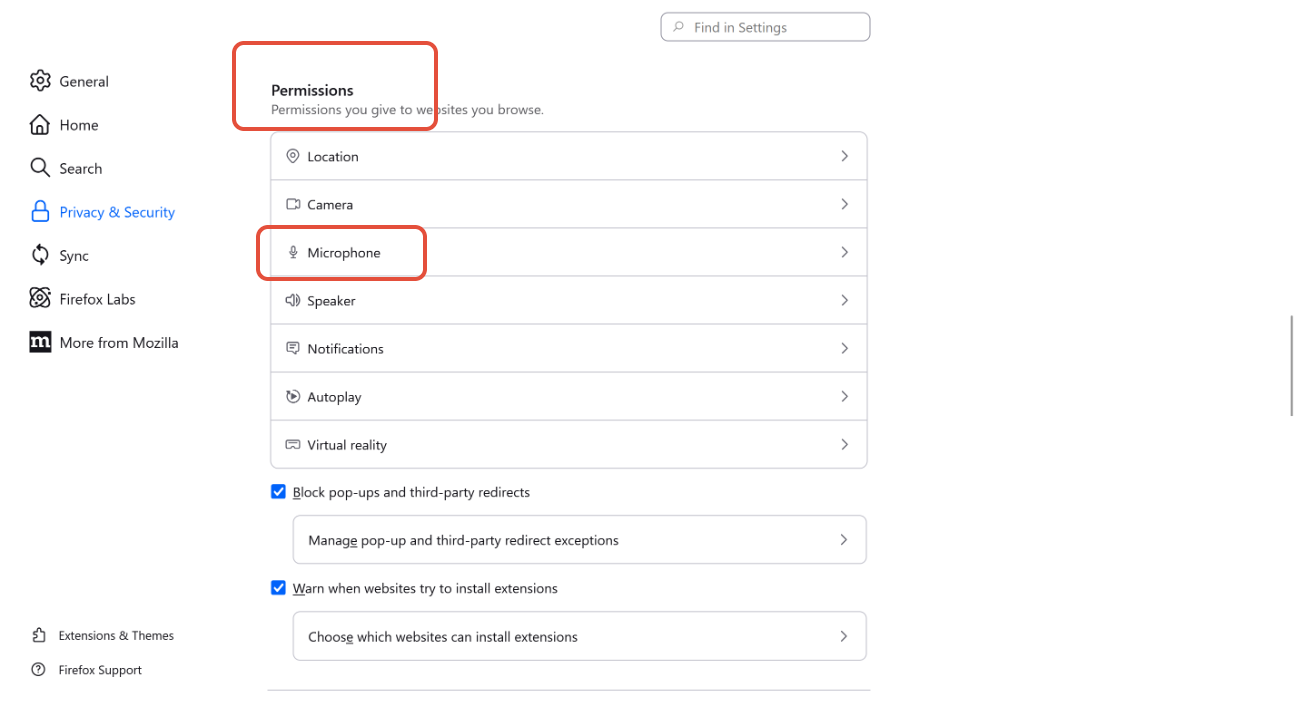
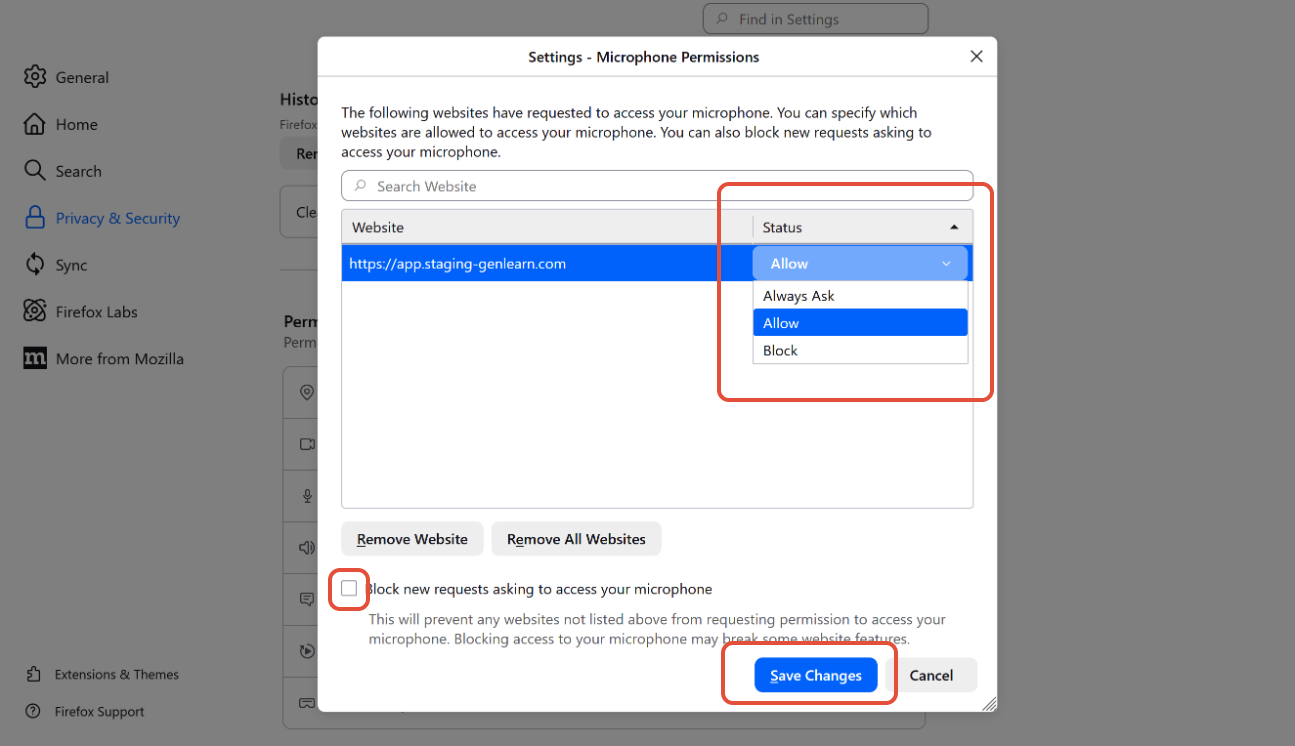
5. The GenLearn website should pop up. In the tab beside it labelled 'status', ensure 'Allow' is pressed. '
6. Also ensure that 'Block new requests asking to access your microphone' is unticked.
7. Press 'Save Changes'. Then refresh the tab where you have the Voice AI tutor open, then the Voice AI tutor should start talking.
Check Microphone is Working on iPhone
Enable using pop up
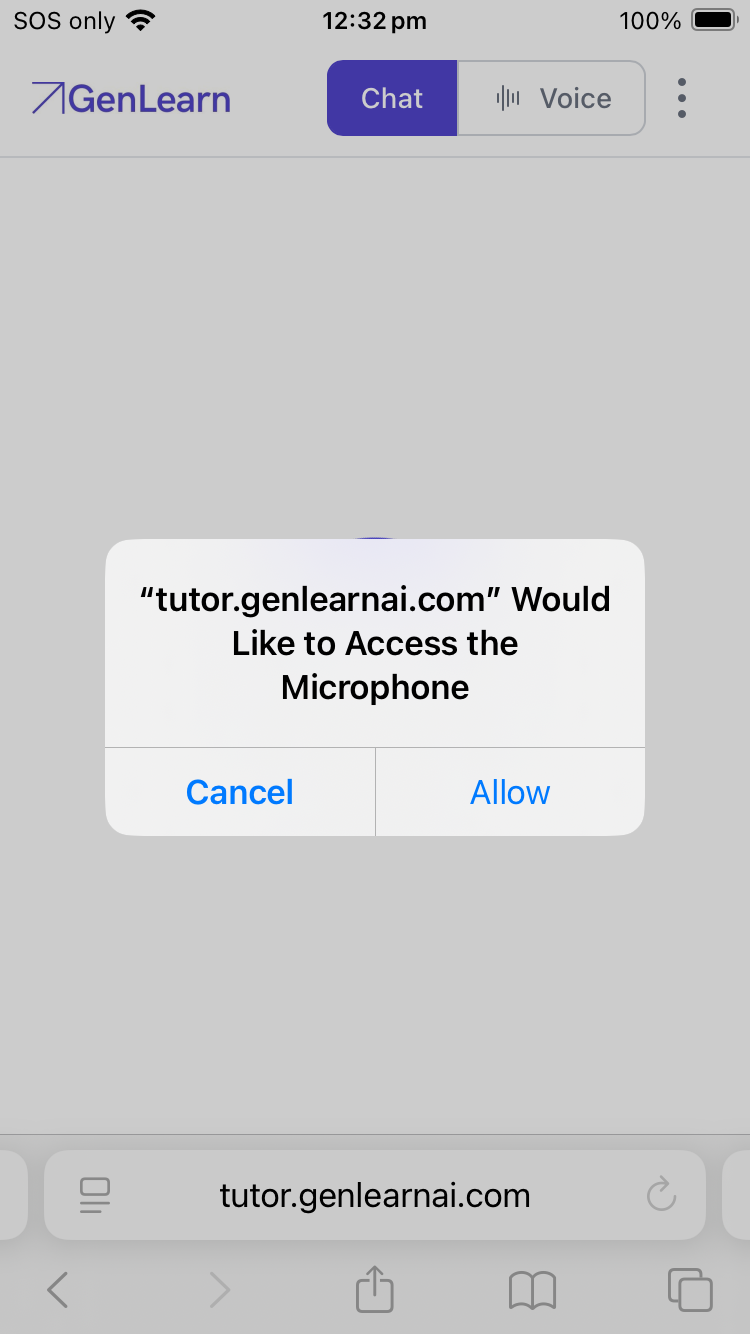
- If you are using Safari, usually a pop up like the one below will appear as the Voice AI tutor is loading.
- When you see this pop up, click on “Allow”
Enable without pop up
If you don’t see the pop up, or if you accidentally dismiss it before allowing microphone access, you can still enable your microphone in your Safari settings.
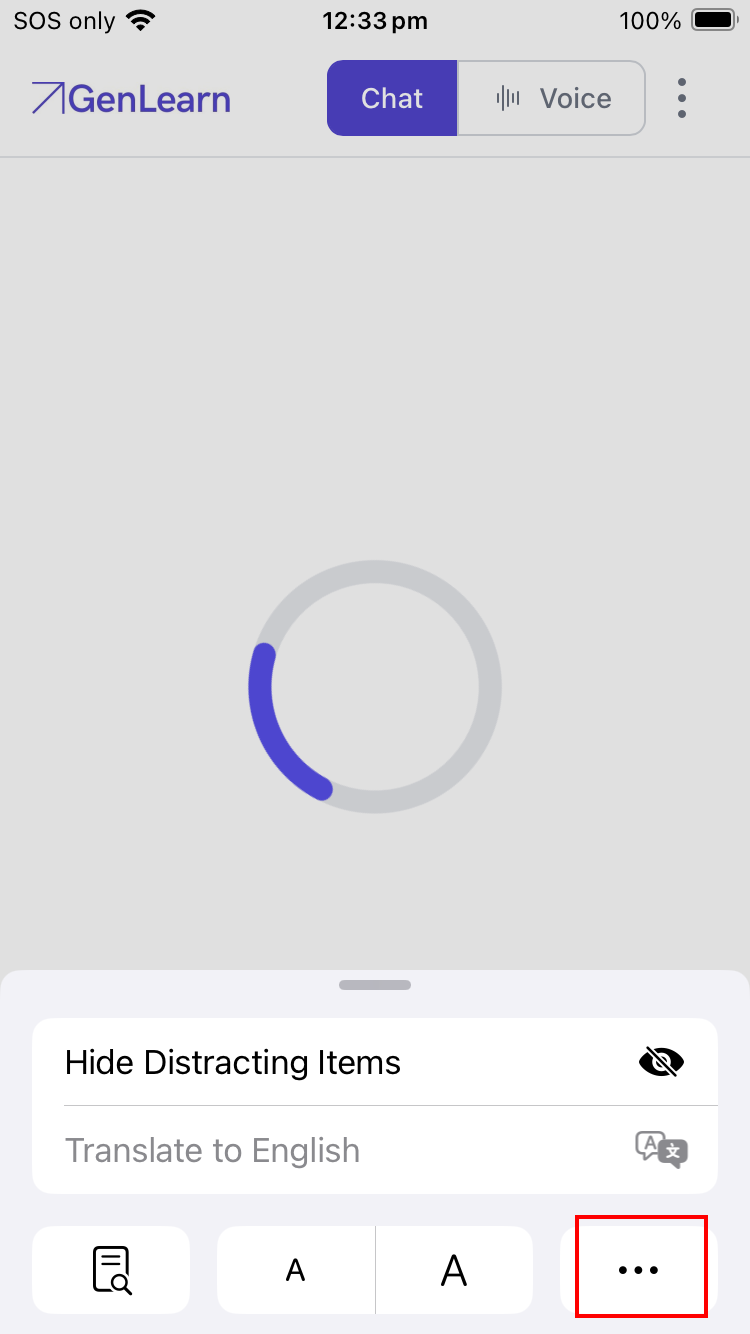
- Click on the icon (in red box below) next to the URL
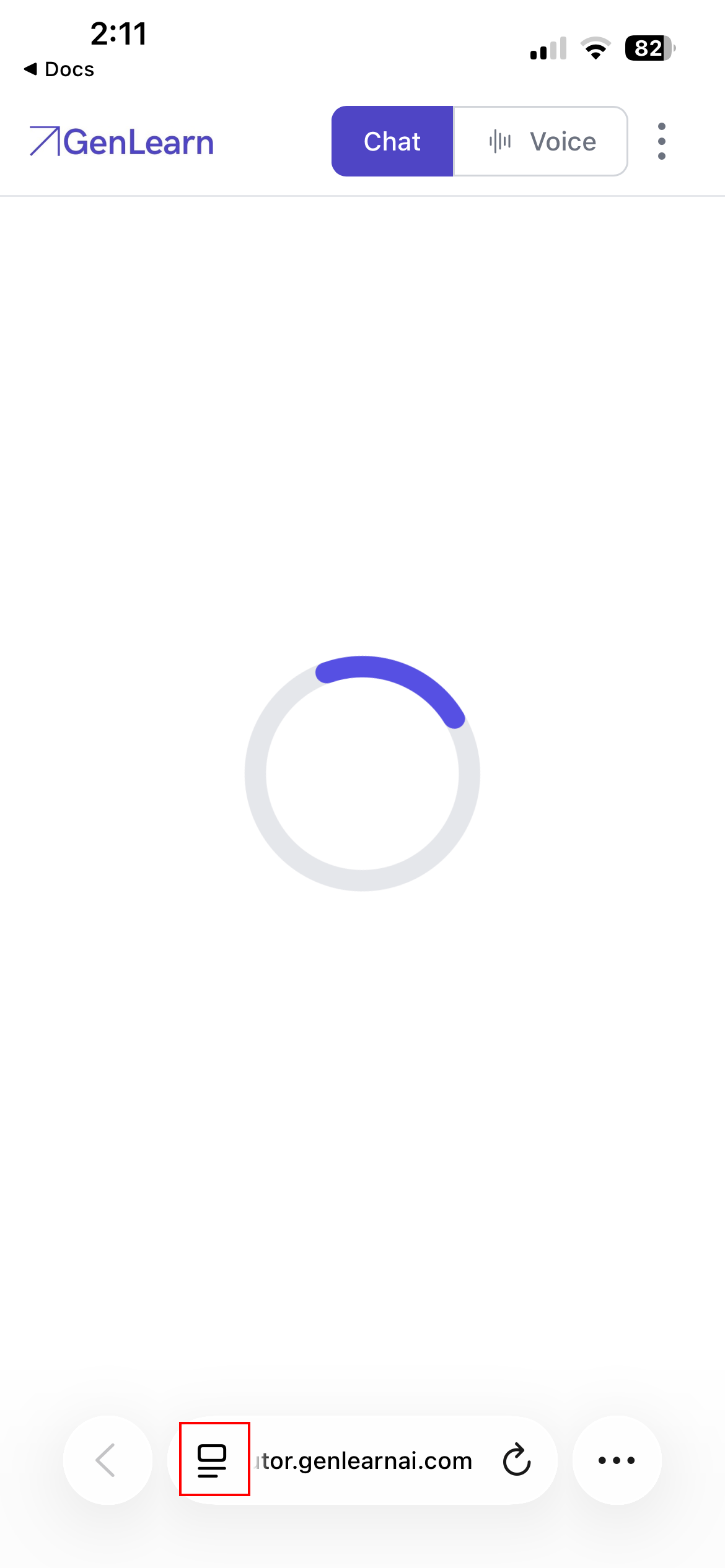
2. In the menu that opens, select the three dots
3. In the menu that opens, select “Microphone” then “Allow”
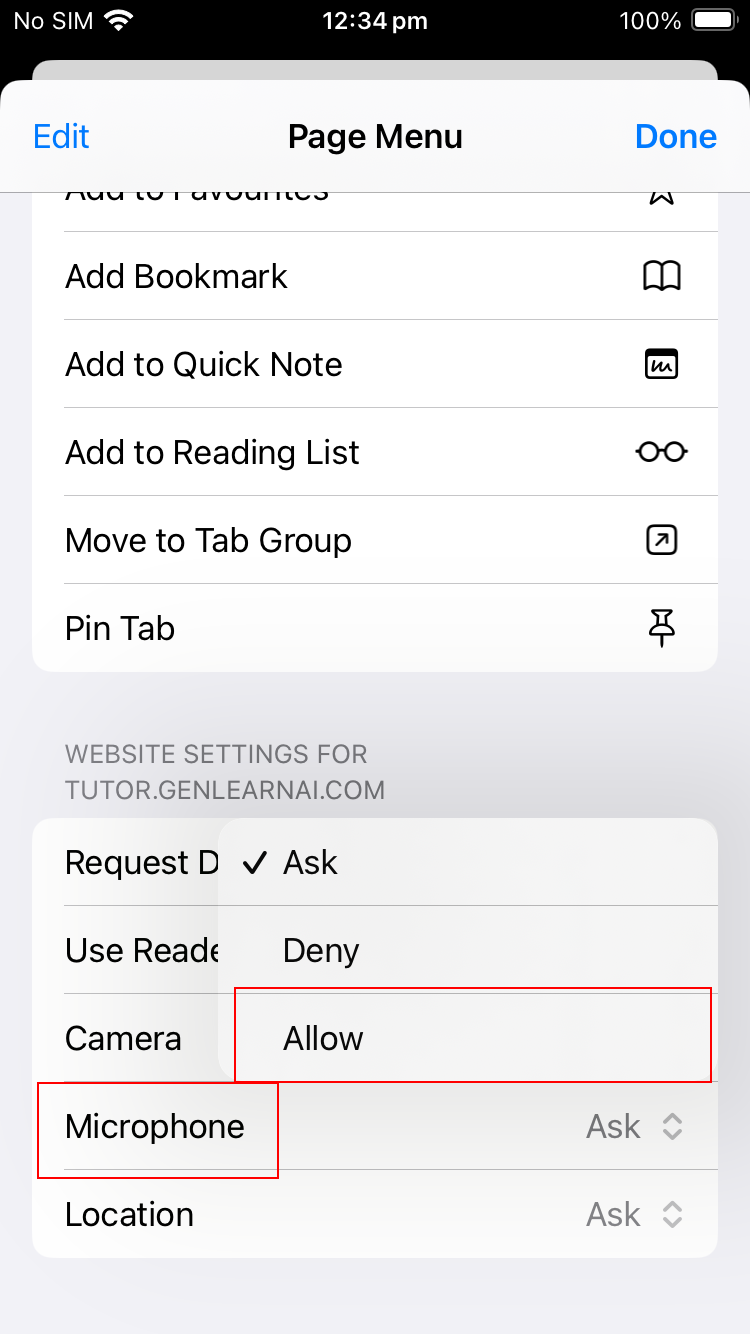
4. Select done, then refresh the tab where you have the Voice AI tutor open, then the Voice AI tutor should start talking.
Was this article helpful?
That’s Great!
Thank you for your feedback
Sorry! We couldn't be helpful
Thank you for your feedback
Feedback sent
We appreciate your effort and will try to fix the article