Use this solution when using the GenLearn AI Instructor Builder to build a complete AI instructor from your own course content.
Before you start
- Course content must be in PDF format
Steps
1. Generate conversation
Open your GenLearn dashboard
Select '+ New Conversation'
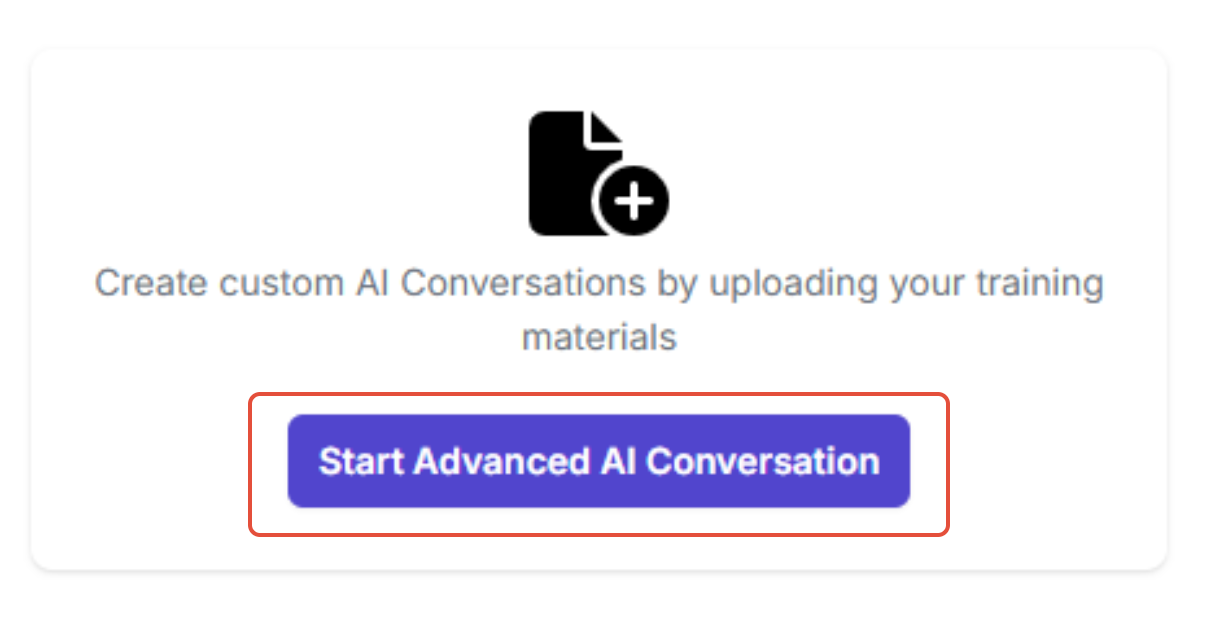
Select 'Start Advanced AI Conversation'
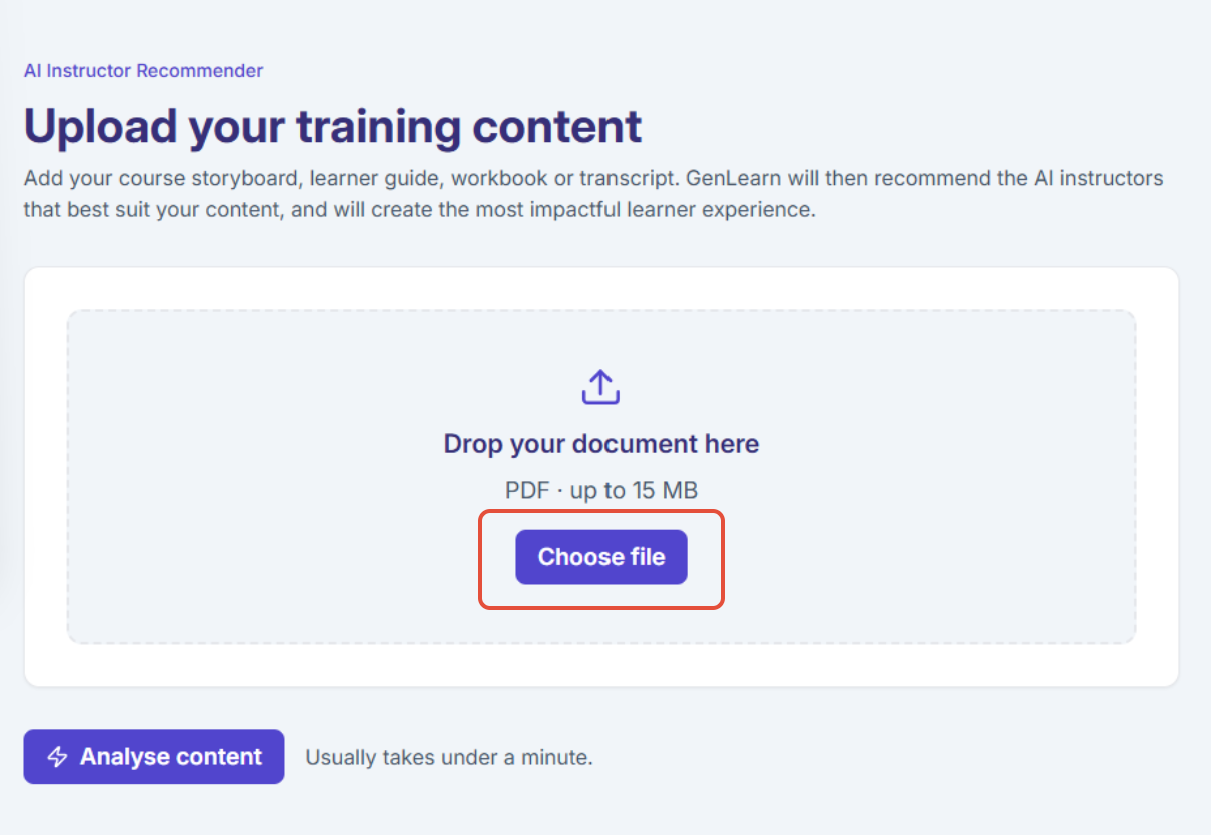
You can either select 'Choose file' or drop your PDF document into the dropbox
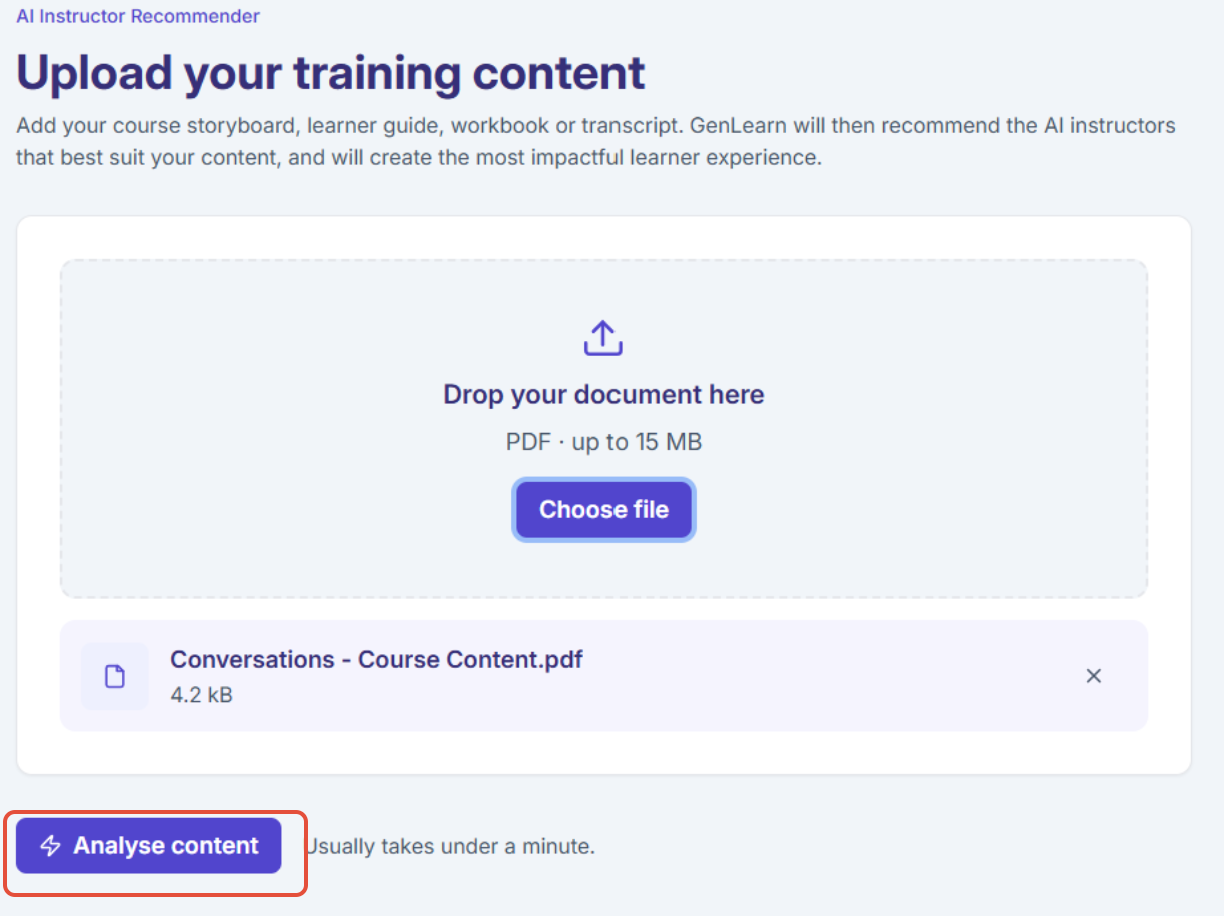
Press 'Analyse content'
This will analyse the learning content and identifies what GenLearn AI learning structures to use for this learning topic.
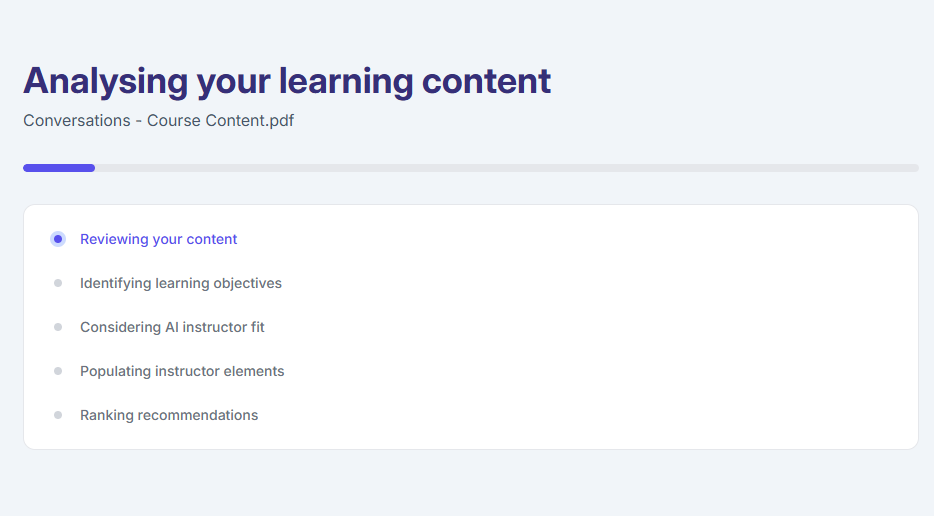
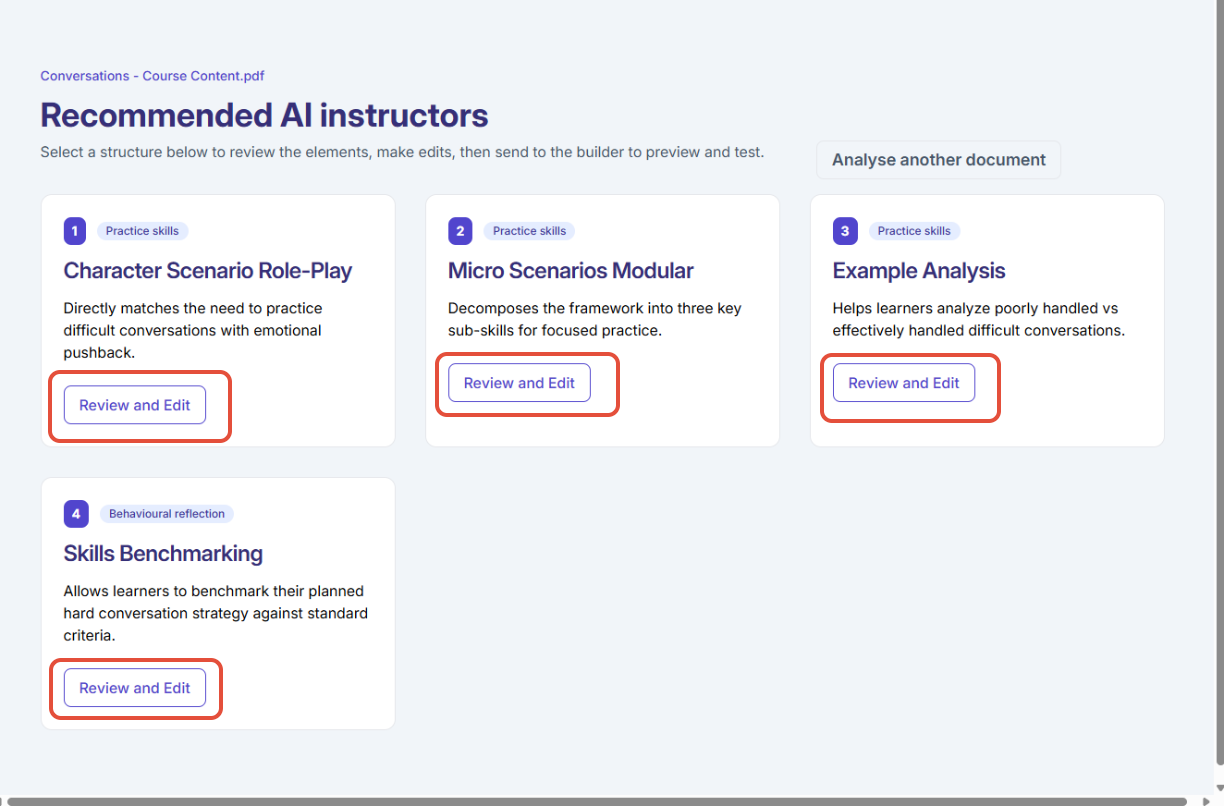
It will then provide you with recommendations, and you can choose which one best suits your learning topic
Under each topic you can read why the GenLearn builder has chosen each structure
Select your preferred structure by pressing 'Review and Edit'
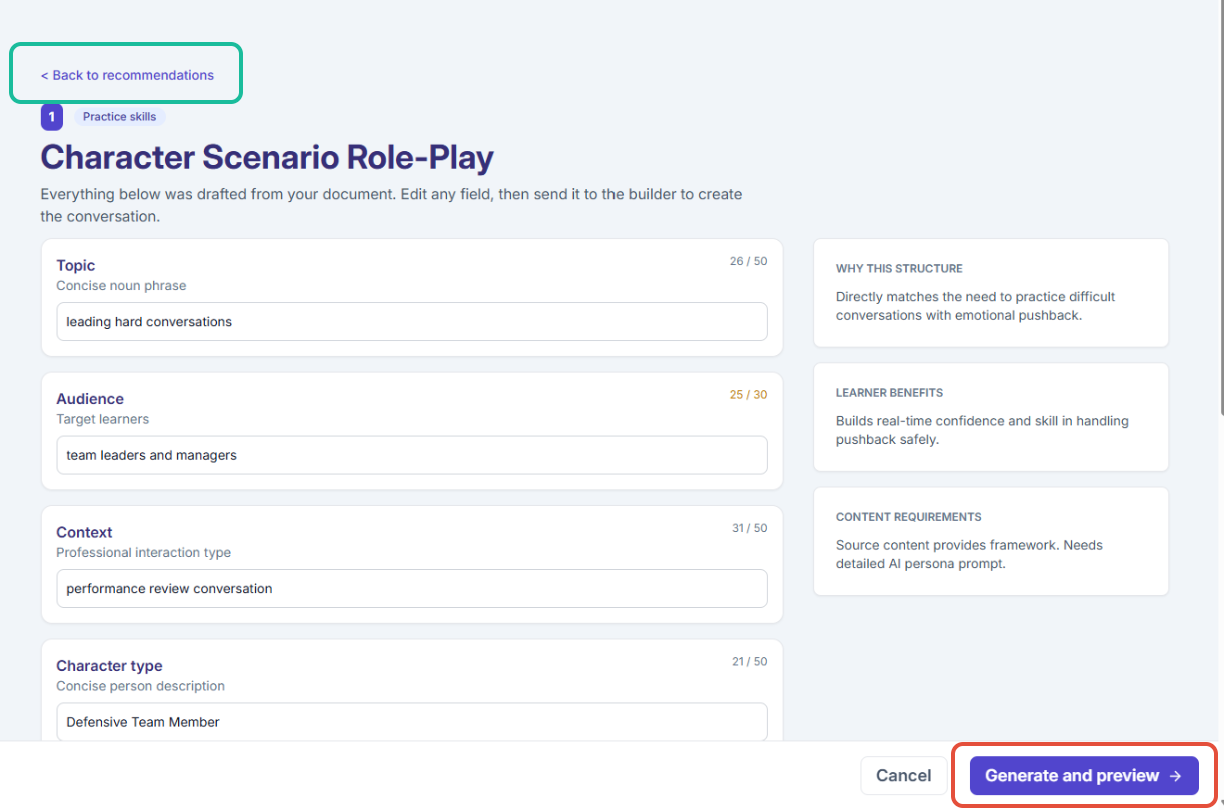
You will then be able to see how the GenLearn builder has built your conversation, and you can decide whether this is a good fit, and make modifications. If you wan't to change to a different recommended structure, press 'back to recommendations' in the top left corner
When you're happy with the settings, press 'Generate'
2. Preview conversation
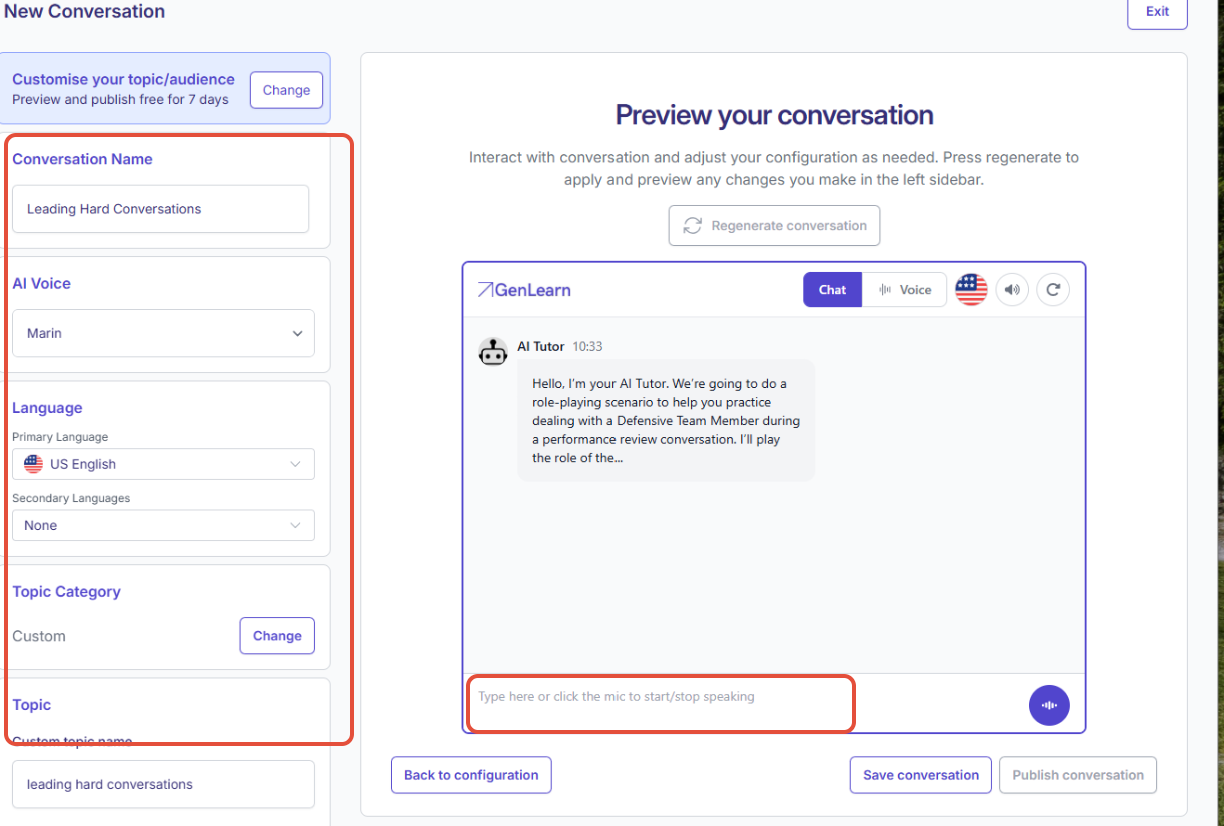
You will then be able to preview your AI conversation in practice
The AI will talk to you and you can respond and run through the full conversation to ensure it performs as you expect
Any modifications can be made in the left sidebar
3. Publish conversation
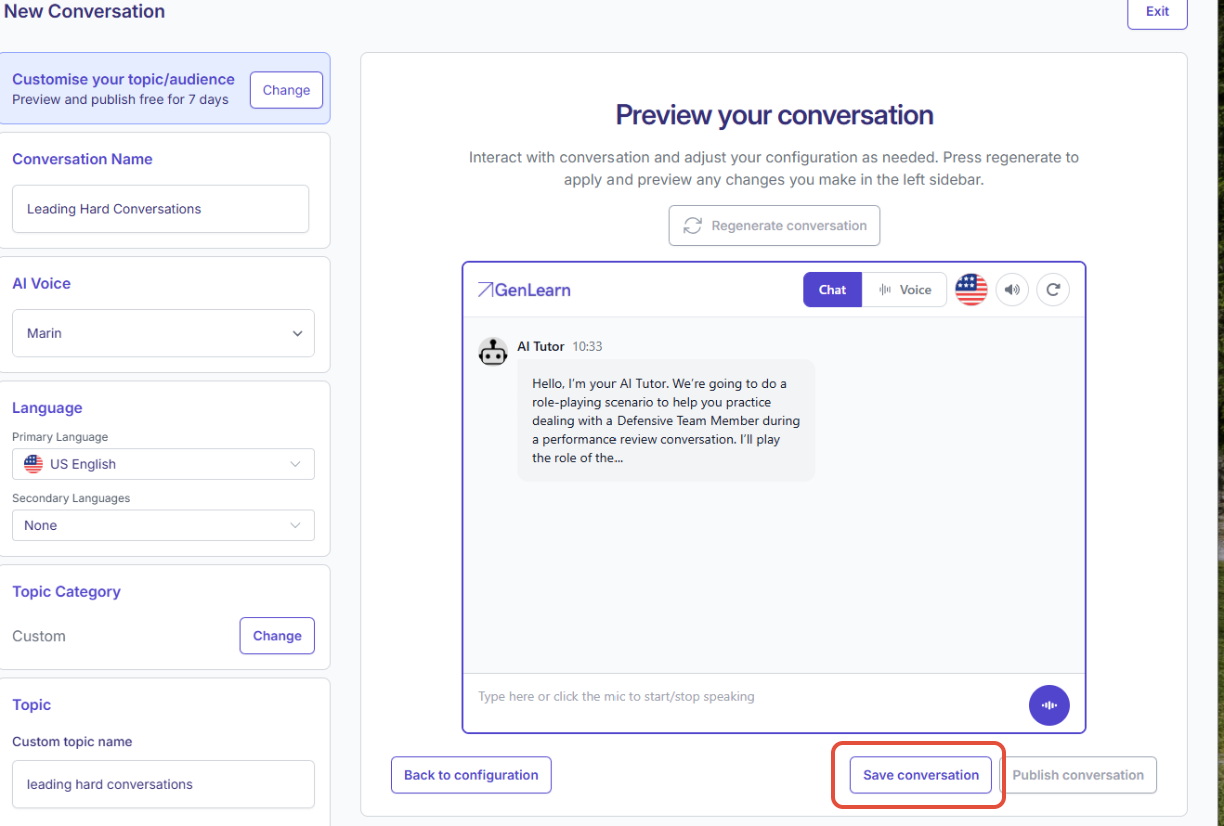
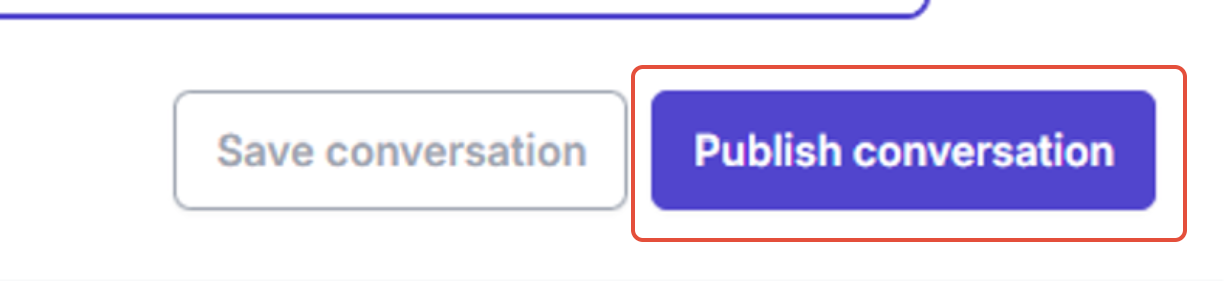
Once you're happy with the conversation press 'Save conversation' which will save it to your dashboard.
Then press 'Publish conversation' and then 'embed your conversation'
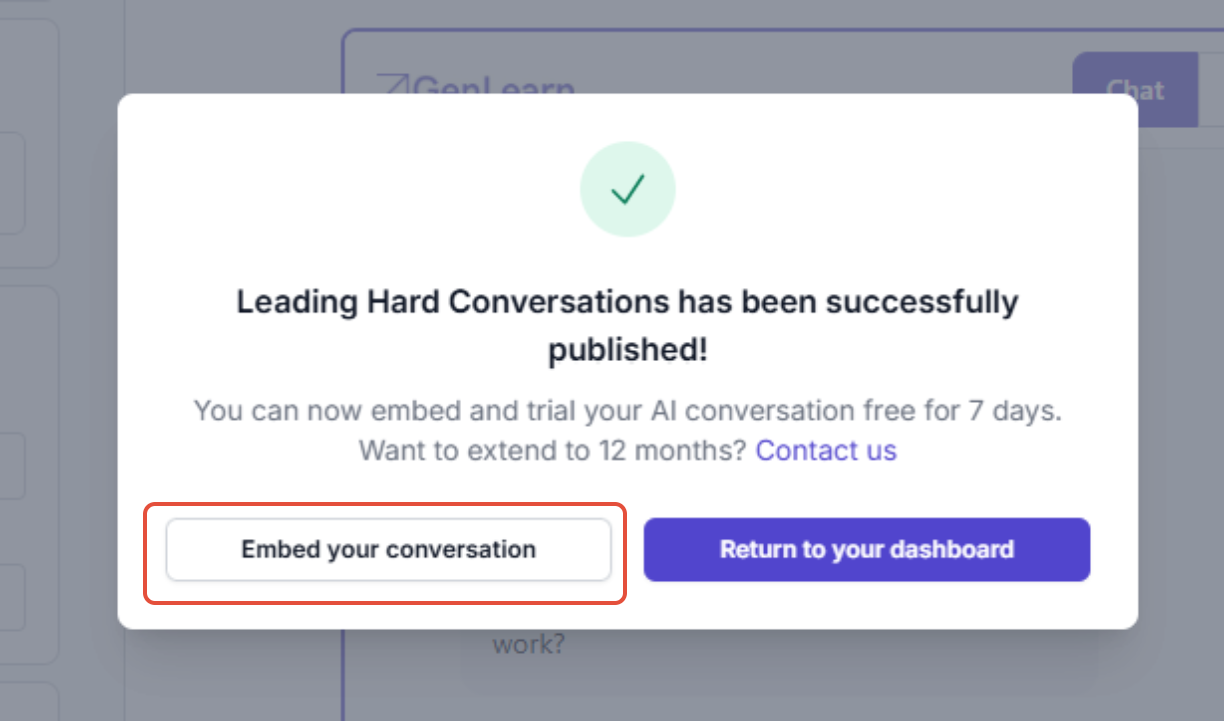
This will enable you to put it into your LMS or course authoring tool by doing one of the following:
copy the iframe to paste into your course authoring tool
Download as stand alone SCORM file
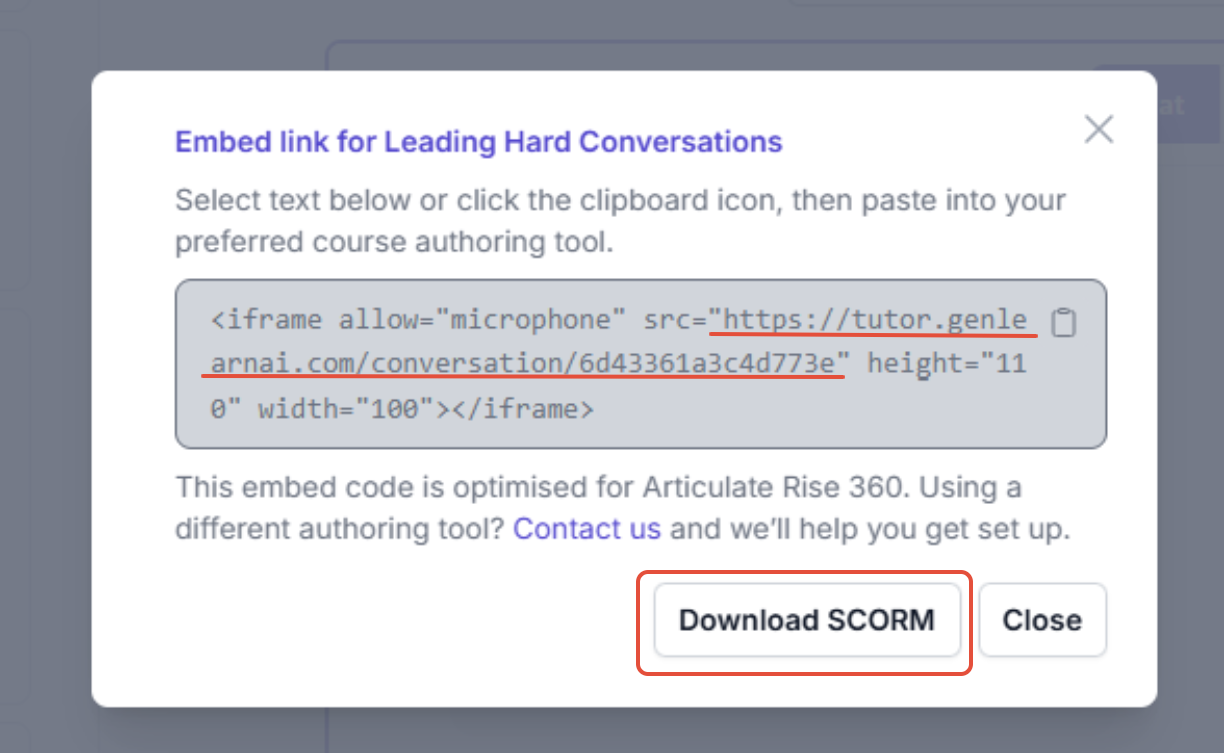
- Press close and you will be taken back to the dashboard, where the conversation is now published and complete.
Was this article helpful?
That’s Great!
Thank you for your feedback
Sorry! We couldn't be helpful
Thank you for your feedback
Feedback sent
We appreciate your effort and will try to fix the article