GenLearn account admins can use this solution when trying to add access to multiple languages in a new conversation in the GenLearn dashboard.
1. Open your GenLearn dashboard.
2. Press '+ New Conversation'.
3. Select conversation type (standard or premium).
4. Name your conversation and select your conversation type, and then a Select Language section will appear.
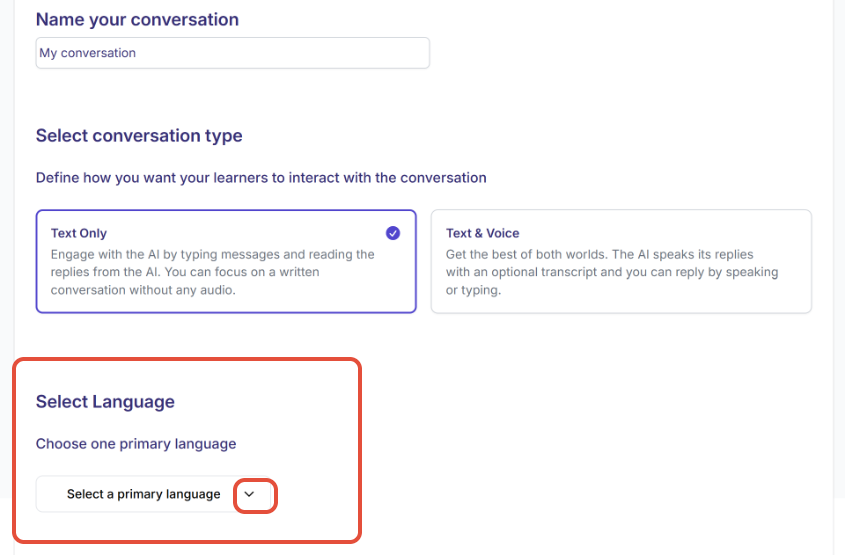
5. Press the dropdown next to 'Select a primary language' and choose the primary language for your conversation.
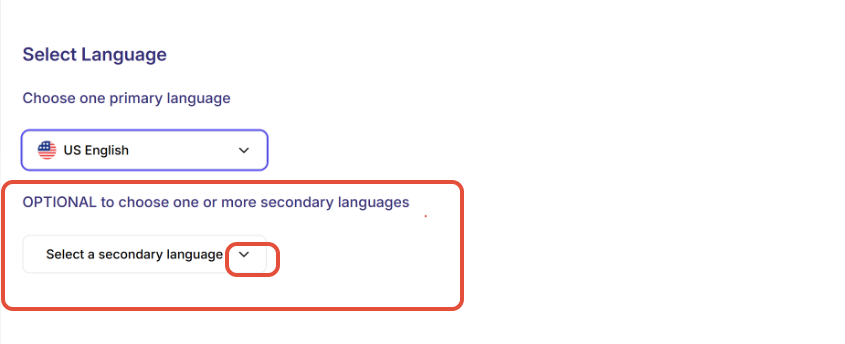
6. After selecting the primary language, the option to choose any secondary Languages will appear. These are other language options that the learner will be able to choose while in the conversation. Press the dropdown next to 'Select a secondary language' and choose any additional languages to add to your conversation.
7. Fill in the rest of your preferences for the conversation and then press generate conversation at the bottom of the page.
8. Your conversation will now be ready to preview with your chosen language options.
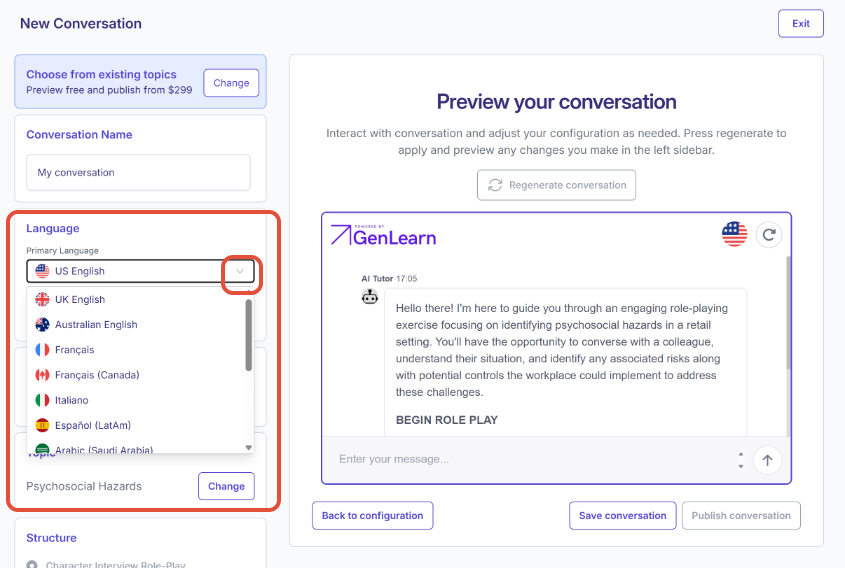
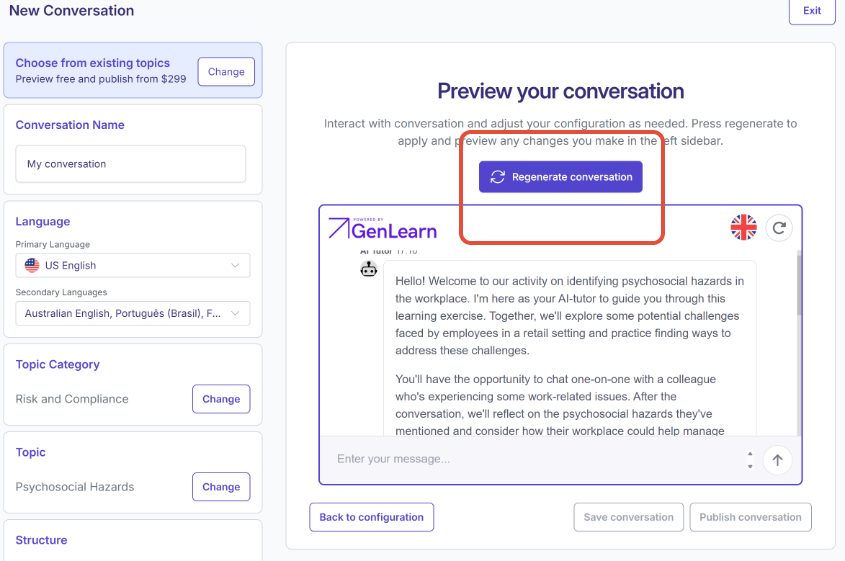
- To edit the primary language in the preview window, press the dropdown next to 'Primary Language' under in the Language section and select the language
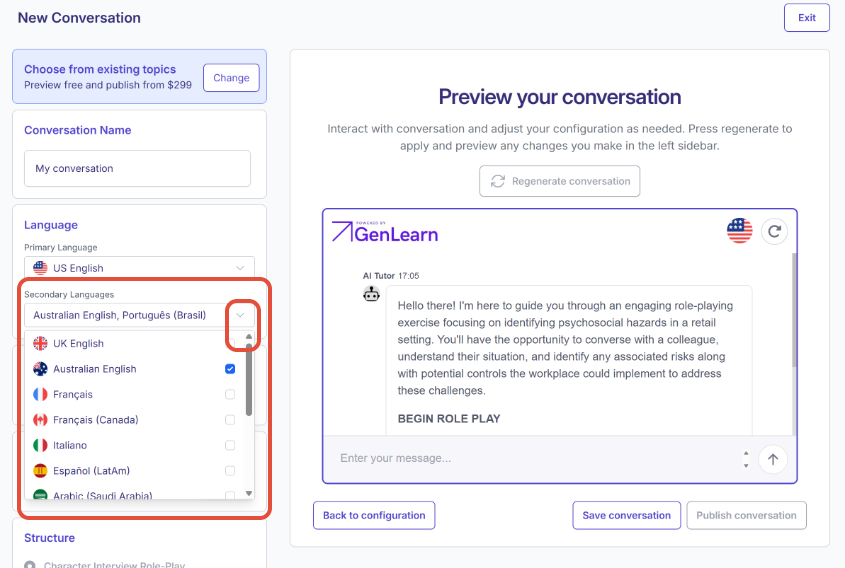
- To edit the secondary language in the preview window, press the dropdown next to 'Secondary Languages' under and select any secondary languages.
8. Press 'Regenerate conversation' to see the changes.
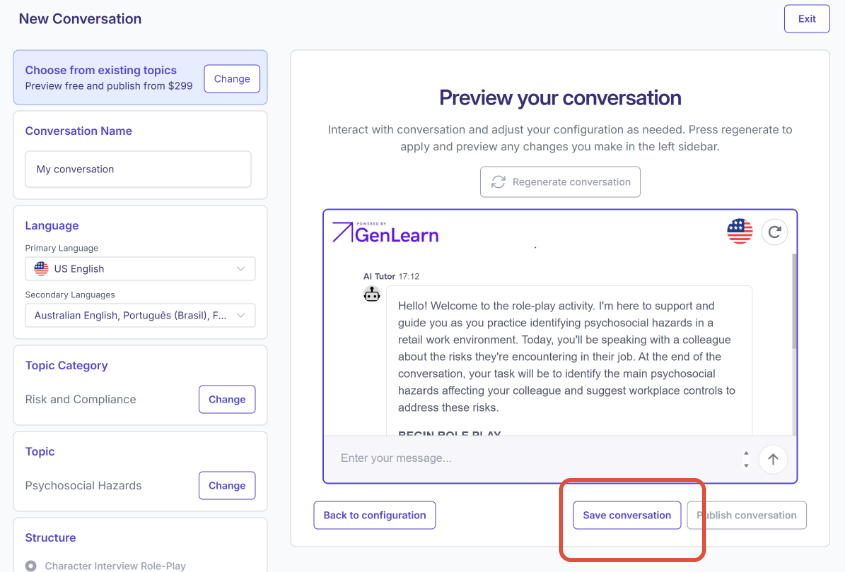
9. Press 'Save conversation' to save your conversation to your dashboard.
To learn how to change the language within a conversation as a learner, follow this solution.
Was this article helpful?
That’s Great!
Thank you for your feedback
Sorry! We couldn't be helpful
Thank you for your feedback
Feedback sent
We appreciate your effort and will try to fix the article